
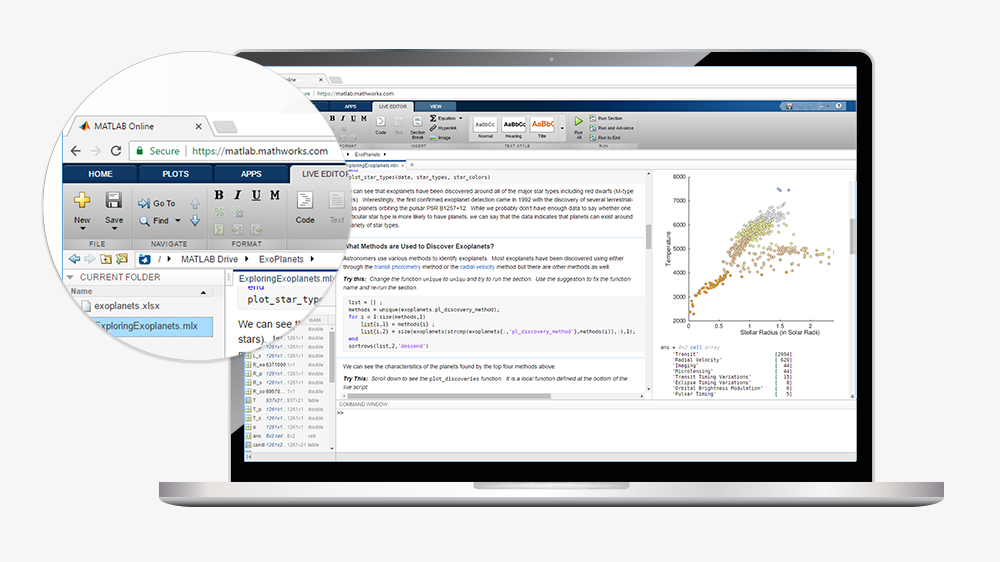
MATLAB download means getting the installation files for MATLAB, Simulink and related toolboxes and blocksets from MathWorks. You can install these on personal computers running Windows, Linux or macOS operating systems. The download provides an interactive installer that guides users through the whole setup process on their chosen platform.
MATLAB download means getting the installation files for MATLAB, Simulink and related toolboxes and blocksets from MathWorks. You can install these on personal computers running Windows, Linux or macOS operating systems. The download provides an interactive installer that guides users through the whole setup process on their chosen platform.
Users must access the MathWorks Downloads page through a valid MathWorks account to download. Users with a MATLAB license through their organization must sign in using their organization’s email address. Those who got a license from the MathWorks Store sign in to the account used for license purchase. The interactive installer manages the whole installation workflow for licensed products.
Users must verify their computer meets the system requirements for their specific platform before starting the download. This includes MATLAB System Requirements for Windows, Linux and Mac. The installer format varies by operating system. Windows users receive an executable file. Linux users download a zip archive containing installation files, and macOS users get a DMG file.
The downloaded installer provides access to multiple installation options beyond the standard setup. Users can install MATLAB on computers with internet connectivity and perform silent installations from the command line for repeated deployments. They can download products without installation or set up MATLAB on offline systems. The installer also supports adding toolboxes and support packages to existing MATLAB installations. It updates to new releases when available and manages product licenses across different installation scenarios.
MathWorks offers installation guidance through step-by-step video tutorials for Campus-Wide license users. These cover the complete process from linking to the license through first-time startup.
Download the installer
After you authenticate your account, access your license number through the My Account page. Go to the “Manage Products” tab where a download button starts the installer retrieval. The installer format varies by platform: Windows receives an executable file (matlab_RXXXXx_win64.exe), macOS gets a DMG file (matlab_RXXXXx_maci64.dmg), and Linux downloads a zip archive (matlab_RXXXXx_glnxa64.zip).
Install MATLAB on your computer
Windows installation proceeds by double-clicking the downloaded executable and following installation prompts. Linux users extract the zip file, go to the unzipped directory, and execute the install script. macOS installation requires unzipping the DMG file, mounting it as a virtual disk, and running the installer application. The installer prompts you to sign in and accept license agreements. You’ll select your license number, confirm installation directory, and choose products to install. Configure your settings before the installation process begins.
MATLAB download system requirements
Installation success depends on meeting your platform’s hardware and software specifications before you start the download process.
Windows system requirements
Windows 11 (version 23H2 or higher), Windows 10 (version 22H2), Windows Server 2025, and Windows Server 2022 are supported. Any Intel or AMD x86-64 processor with two or more cores meets the minimum requirement. Four or more cores with AVX2 instruction set support are recommended. You need at least 8 GB of RAM, though 16 GB is recommended. Storage needs vary from 4.2 GB to install MATLAB alone to 24 GB for complete product installations. SSD storage is recommended. Graphics rendering benefits from a GPU that supports WebGL 2.0 with at least 2 GB of memory.
macOS system requirements
macOS Tahoe (26), macOS Sequoia (15), and macOS Sonoma (14) are the supported operating systems. Intel-based Macs require any x86-64 processor with two or more cores minimum. Apple Silicon Macs support any M-series chip. RAM specifications mirror Windows requirements at 8 GB minimum and 16 GB recommended. Storage requirements range from 3.8 GB to 17 GB depending on installation scope.
Linux system requirements
Supported distributions include Ubuntu 20.04 LTS, Ubuntu 24.04 LTS, Ubuntu 22.04 LTS, Debian 13, Debian 12, Red Hat Enterprise Linux 9 and 8, and SUSE Linux Enterprise Desktop/Server 15. Processor and RAM specifications match Windows requirements. Storage needs span 4.1 GB to 25 GB. SSD is recommended.